

Download Santa Claus Icons – free Mac icon pack for Christmas
Overview
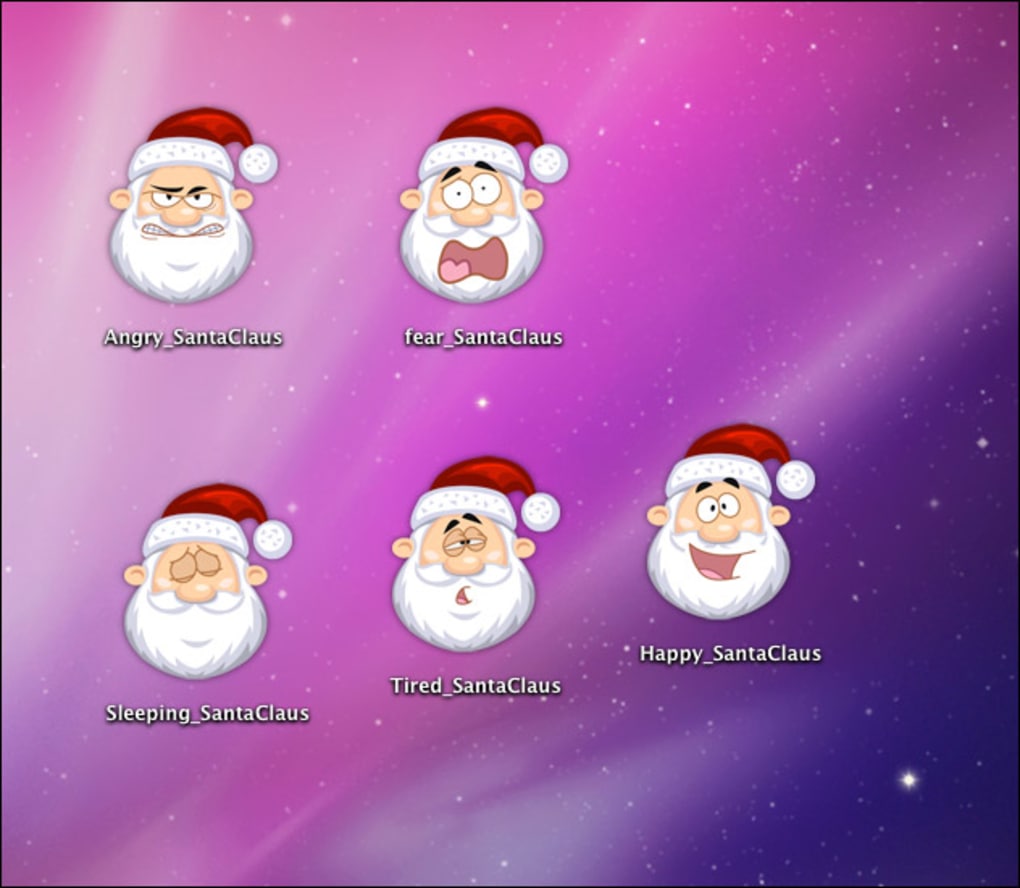
Santa Claus Icons is a charming collection of five hand‑illustrated Santa faces designed specifically for macOS users who want to add a festive touch to their desktop. The pack includes expressive versions of Santa showing anger, happiness, fright, tiredness, and sleepiness, each saved in high‑resolution PNG format. While the set stops at five emotions, the quality of the artwork makes each icon instantly recognizable and perfectly suited for folders, files, or shortcuts. Because the icons are free to use, you can replace standard system icons without spending a dime, giving your Mac a playful holiday makeover in just a few clicks. Whether you’re a designer looking for seasonal assets or a casual user eager to spread Christmas cheer, Santa Claus Icons offers a quick, secure, and completely free way to personalize your Mac’s visual language.
Key Features & Benefits
- Five distinct emotions: Angry, happy, frightened, tired, and sleepy Santa faces give you a range of moods for different folders.
- High‑resolution PNG files: Each icon is provided at 1024 × 1024 px, ensuring crisp display on Retina screens.
- Free for personal and commercial use: No licensing fees; you can use the icons in presentations, websites, or apps.
- Easy replacement process: Copy the PNG to the clipboard and paste it directly into the Finder’s Get Info window.
- Compatible with popular icon managers: Works seamlessly with tools like CandyBar, LiteIcon, or IconJar.
- Lightweight package: The total download size is under 2 MB, making it quick to download even on slower connections.
- Seasonal aesthetic: Perfect for holiday‑themed projects, desktop setups, or sharing with friends and family.
Installation & Usage Instructions
Step‑by‑Step Guide for macOS
- Download the zip file: Click the “Download” button on the product page. The file is compressed for faster transfer.
- Extract the archive: Double‑click the zip file to unzip it. You’ll see five PNG files named
Santa‑Angry.png,Santa‑Happy.png, etc. - Copy an icon to the clipboard: Open the PNG in Preview, then press ⌘ A to select all and ⌘ C to copy.
- Open Finder’s Get Info window: Locate the file or folder you want to change, right‑click, and choose “Get Info” (or press ⌘ I).
- Paste the new icon: Click the small icon thumbnail at the top‑left of the Get Info window, then press ⌘ V. The new Santa face will replace the old icon instantly.
- Refresh the view: If the icon doesn’t update right away, close the Get Info window and reopen it, or press Option + ⌘ = to relaunch Finder.
Using Third‑Party Icon Managers
If you prefer a more automated workflow, third‑party tools such as CandyBar or LiteIcon can import the PNG files directly. Simply drag the icons into the manager’s library, assign them to the desired file types, and let the app handle the replacement. This method is especially useful if you want to apply the Santa icons to multiple items at once.
Compatibility, Pros & Cons
Supported OS: macOS 10.12 Sierra and later (including Ventura, Monterey, and Big Sur). The PNG format ensures the icons display correctly on all Retina and non‑Retina screens.
Pros
- Completely free with a permissive license.
- High‑resolution artwork that looks sharp on modern displays.
- Simple manual replacement process without extra software.
- Works with popular icon managers for batch changes.
- Lightweight download, ideal for quick seasonal updates.
Cons
- Limited to five emotions; users may want more variety.
- Mac‑only; Windows and Linux users need a different workflow.
- No built‑in batch installer; manual steps required for each icon.
Frequently Asked Questions
Can I use Santa Claus Icons in commercial projects?
Yes. The icons are released under a free‑for‑both‑personal‑and‑commercial license, so you can incorporate them into presentations, marketing materials, or even apps without paying royalties.
Do the icons work on Windows or Linux?
The PNG files themselves are platform‑agnostic, but the replacement process described above is macOS‑specific. Windows users can still use the PNGs with third‑party icon utilities that support PNG icons.
How do I revert back to the original macOS icon?
Open the Get Info window for the item, click the icon thumbnail, and press ⌘ Delete. macOS will restore the default system icon automatically.
Is there a way to batch‑replace many icons at once?
Yes. Using an app like CandyBar or LiteIcon, you can import all five PNGs and assign them to multiple file types or folders in a single operation, saving time compared to manual replacement.
Will the icons receive updates for newer macOS versions?
The icons are static PNG files, so they will continue to display correctly on future macOS releases. No additional updates are required unless the creator decides to add more emotions.
Conclusion & Call to Action
Santa Claus Icons delivers a delightful, free‑of‑charge way to sprinkle holiday spirit across your Mac. With high‑quality PNGs, an intuitive manual replacement method, and compatibility with popular icon managers, the pack balances simplicity and flexibility. While the limited emotion set might leave power users wanting more, the overall value—especially at zero cost—makes it a worthwhile addition to any festive desktop. Ready to give your folders a jolly makeover? Download Santa Claus Icons now and start spreading Christmas cheer on your Mac today.







